Agentic Workflows: MCP Integration with Zotero
Nasir Mahmood Abbasi, PhD
Bioinformatics Educator
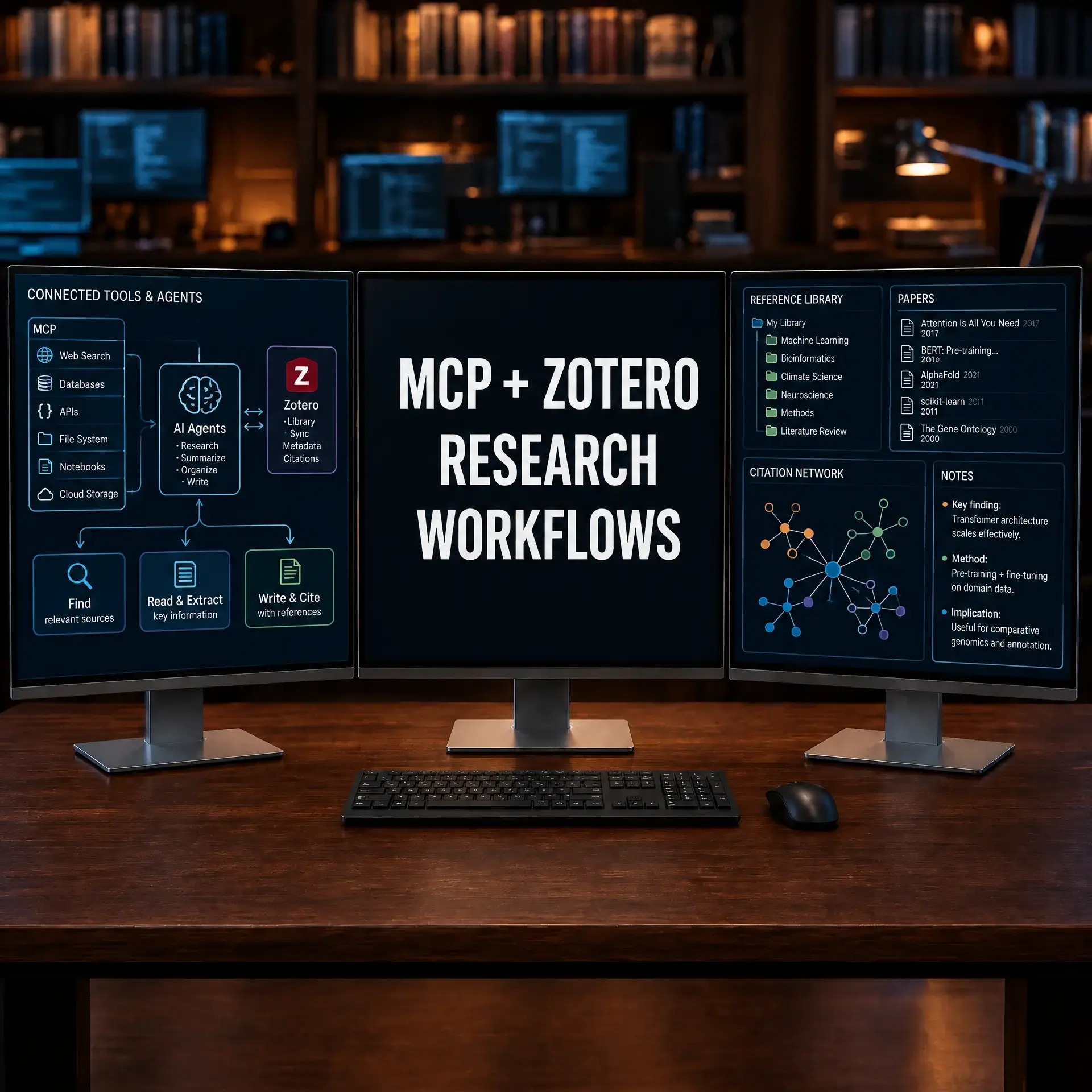
Learning Objectives & Prerequisites
- Prerequisites: Zotero 6 or 7 installed, and an AI editor (Cursor or Aider).
- Objective: Install and configure the Model Context Protocol (MCP) to seamlessly connect AI agents to your scientific literature.
- Expected Output: The ability to query Zotero databases directly from your coding environment using natural language.
📘 What is the Model Context Protocol (MCP)?
The Model Context Protocol (MCP) is an open standard that allows AI models to securely access external data sources. In bioinformatics, this means your AI assistant can read your PDFs and extract citations from Zotero; all without manually copying and pasting text. It bridges the gap between your coding environment and your knowledge repositories.
Before You Begin: Prepare Zotero and the MCP Connection
This workflow connects an AI client to a Zotero library through the Model Context Protocol (MCP). Treat the connection as read-only until you understand the permissions. Back up the Zotero library before allowing any automated write operation.
Checklist
- Install Zotero and create a small test collection containing three papers and their PDFs.
- Install the MCP server specified in this tutorial in an isolated environment, following its current project instructions.
- Start the server locally and confirm that the client lists only the tools and collections you expect.
- Ask the agent to retrieve one known paper by title, then compare the returned citation with Zotero manually.
Do not expose a Zotero API key or library token in chat transcripts. If the server supports read-only mode, enable it for the first run.
Success check: the client can retrieve one citation, identify its collection, and return a source link without changing the library.
Integrating Zotero with AI Agents
Zotero is widely used for academic reference management. By integrating an MCP server, an AI assistant can search a permitted local database, retrieve available full-text records, and help draft formatted citations for markdown notes or LaTeX files. Always verify the retrieved paper, metadata, and citation before using it in a manuscript.
Step 1: Prerequisites for Zotero MCP
- Ensure Zotero 6 or 7 is installed and running on your machine.
- Install the Better BibTeX plugin for Zotero. This is required because the MCP server uses Better BibTeX's citation keys to reliably identify papers.
- Go to Zotero Preferences > Better BibTeX and configure your citation key format:
# Recommended citation key format for Better BibTeX:
[auth:lower][year]

# Example output for a paper by Smith et al. (2024):
# Citation key: smith2024

# Alternative format with title word:
[auth:lower][year][shorttitle:lower]
# Output: smith2024single
Why Better BibTeX? Standard Zotero uses internal numeric IDs that change across library syncs. Better BibTeX generates stable, human-readable citation keys (like abbasi2026) that remain consistent across machines and are easier to reference in LaTeX, markdown, and AI prompts.
Step 2: Installing the Zotero MCP Server
The Zotero MCP server runs as a Node.js process. You have two installation options:
# Option 1: Run directly with npx (no permanent installation)
npx -y @smithery/cli run @sckott/zotero-mcp-server

# Option 2: Install globally for persistent use
npm install -g @sckott/zotero-mcp-server
Step 3: Configuring the MCP Server in Your IDE
In Cursor or Claude Desktop, add the server configuration:
For Cursor:
- Open Cursor Settings.
- Navigate to the Features > MCP section.
- Click + Add New MCP Server.
- Name:
Zotero, Type:command - Command:
npx -y @smithery/cli run @sckott/zotero-mcp-server
For Claude Desktop or Antigravity, add to your mcp_config.json:
{
  "mcpServers": {
    "zotero": {
      "command": "npx",
      "args": ["-y", "@smithery/cli", "run", "@sckott/zotero-mcp-server"]
    }
  }
}
Note: If your Zotero data directory is not in the default location, pass --config-path /path/to/zotero as an additional argument.
Step 4: Practical Research Queries
Once connected, you can query your Zotero library directly from your coding environment. Here are practical examples for PhD research:
# Example prompts to use with your AI agent:

1. "Search my Zotero library for papers about 'FOXP3 regulatory
   T cells' and list them with authors, year, and citation keys."

2. "From my Zotero collection 'Thesis_Chapter_3', extract all
   papers published after 2022 and format their citations in
   APA style for my manuscript."

3. "Find the paper by Cui et al. 2024 about scGPT in my library.
   Read its abstract and methods section, then summarize the
   key computational pipeline they used."

4. "Cross-reference my Zotero library with this gene list:
   [FOXP3, IL2RA, CTLA4]. For each gene, find papers in my
   library that mention it and create a citation matrix."
Automating Citation Extraction for Manuscripts
A powerful workflow is to combine Zotero MCP with your writing process. You can ask the agent to automatically generate a bibliography section from your manuscript draft:
# Example: Extract all cited papers from a markdown draft
# and verify they exist in your Zotero library

import re

# Read your manuscript draft
with open("thesis_chapter3.md", "r") as f:
    text = f.read()

# Extract all citation keys (e.g., @smith2024, @abbasi2026)
citations = re.findall(r"@(\w+\d{4}\w*)", text)
unique_citations = sorted(set(citations))

print(f"Found {len(unique_citations)} unique citations:")
for cite in unique_citations:
    print(f"  - @{cite}")

# The AI agent can then verify each citation exists in Zotero
# and flag any that are missing or have incorrect metadata
Troubleshooting Common Issues
- Connection refused: Ensure Zotero is actively running. The MCP server communicates with the Zotero desktop application via a local HTTP port (default: 23119). If Zotero is closed, the connection will fail.
- Better BibTeX not found: The server will report an error if Better BibTeX is not installed. Verify it appears in Zotero > Tools > Add-ons.
- npx path issues: Ensure that
npx(Node.js) is in your system PATH. On Linux, you may need to provide the absolute path (e.g.,/usr/local/bin/npxor~/.nvm/versions/node/v20.11.0/bin/npx). - Large libraries: If your Zotero library contains thousands of items, searches may be slow. Use collection-scoped queries (e.g., "search in my 'Chapter_1' collection") instead of library-wide searches.
- PDF access: The MCP server can read PDF full text only if the PDFs are stored locally (not linked). Verify your Zotero storage settings under Preferences > Advanced > Files and Folders.
Conclusion
By connecting your IDE directly to Zotero via MCP, you create a unified, agentic workspace where data analysis and literature review happen simultaneously. This drastically reduces context switching and accelerates scientific discovery.
Knowledge Check & Assessment
1. Concept Verification
Why is the Better BibTeX plugin strictly required for the Zotero MCP server to function reliably?
2. Practical Execution
Configure the Zotero MCP server in your IDE. Ask the AI to cross-reference a topic with papers in your Zotero library and extract key methodology points.
Reviewed: September 2026
All commands and outputs were verified with the software versions listed in this tutorial. If you encounter reproducibility issues, please report them through the Contact page.
Author: Nasir Mahmood Abbasi, PhD · Category: AI-Driven Research & Agentic Bioinformatics