Building a Custom Research Brain with Google NotebookLM
Nasir Mahmood Abbasi, PhD
Bioinformatics Educator
Learning Objectives & Prerequisites
- Prerequisites: A Google account for NotebookLM, and an AI editor (Cursor or Aider).
- Objective: Install and configure the NotebookLM MCP to synthesize large collections of PDFs and research notes.
- Expected Output: The ability to query NotebookLM content directly from your coding environment using natural language.
📘 What is NotebookLM?
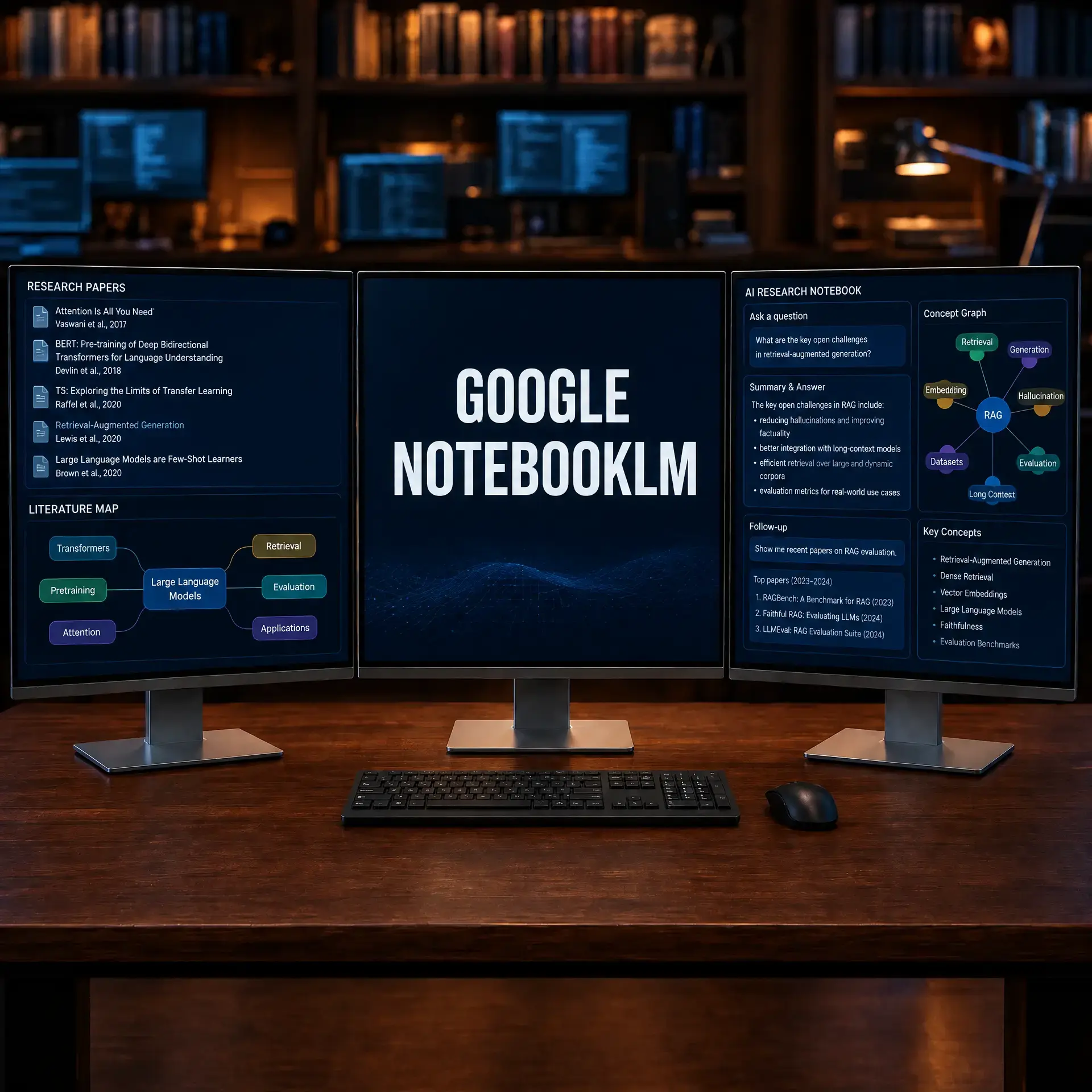
Google's NotebookLM is a highly effective tool for synthesizing large collections of PDFs and research notes. Connecting it to your IDE via the Model Context Protocol (MCP) allows you to query your synthesized knowledge directly while writing code or designing experiments.
Before You Begin: Build a Small, Traceable Source Set
NotebookLM answers from the sources you provide, so source selection determines the quality of the result. Begin with three to five documents that share a defined question. Record the title, version, date, and source URL for each document.
First practical exercise
- Create a notebook named for one research question.
- Upload a small source set and wait for each source to finish processing.
- Ask for a comparison table with a citation or source pointer for every claim.
- Open the cited passages and mark unsupported statements for removal.
Do not upload confidential manuscripts, patient data, unpublished sequences, or documents whose license prohibits cloud processing. Export the final notes with the source list so another person can reproduce the review.
Success check: every conclusion in your summary points back to a source passage, and the notebook's source list is complete.
Connecting NotebookLM for Deep Research
By bringing NotebookLM directly into your coding environment, you can avoid context switching and immediately pull reference material into your prompts.
Step 1: Installing the NotebookLM MCP Server
The NotebookLM MCP server is a Python package that bridges your IDE to Google's NotebookLM API. Install it using pipx for system-wide availability without polluting your project environments:
# Option 1: Install with pipx (recommended for CLI tools)
pipx install mcp-notebooklm

# Option 2: Install with pip
pip install mcp-notebooklm

# Verify installation
mcp-notebooklm --version
Step 2: Authentication
You must authenticate your Google account locally so the MCP server can access your notebooks. Run the following command in your terminal:
nlm loginThis will open a browser window. Log into the Google account associated with your NotebookLM data. The credentials are saved as OAuth tokens to ~/.notebooklm-mcp-cli/ on your local machine. Tokens expire after approximately 7 days and need to be refreshed by running nlm login again.
Step 3: Configuring NotebookLM in Your IDE
In Cursor, Claude Desktop, or Antigravity, add a new MCP server. The configuration varies by IDE:
For Cursor:
- Open Cursor Settings.
- Navigate to the Features > MCP section.
- Click + Add New MCP Server.
- Name:
NotebookLM - Type:
command - Command:
mcp-notebooklm
For Claude Desktop or other MCP clients, add the following to your mcp_config.json:
{
  "mcpServers": {
    "notebooklm": {
      "command": "mcp-notebooklm",
      "args": []
    }
  }
}
Step 4: Building a Research Synthesis Workflow
Once connected, you can query your NotebookLM notebooks directly from your coding environment. Here is a practical workflow for a PhD student conducting a literature review:
# Example prompts to use with your AI agent after MCP is configured:

1. "List all my NotebookLM notebooks and show me which ones
   contain sources about T cell exhaustion."

2. "From my 'Immunology_Review' notebook, extract every mention
   of PD-1 signaling pathways and format them as a markdown table
   with the source document name and page reference."

3. "Query my 'Methods_Comparison' notebook: What are the key
   differences between CyTOF and spectral flow cytometry for
   immune cell phenotyping? Include citations."

4. "Cross-reference my 'Sezary_Syndrome' notebook with my
   'Single_Cell_Methods' notebook to find overlapping gene
   signatures mentioned in both."
The agent retrieves grounded answers (with source citations) from your uploaded PDFs and notes, and can immediately format the results into Python variables, R vectors, or LaTeX tables for your manuscript.
Organizing Notebooks for Maximum Effectiveness
NotebookLM works best when notebooks are focused on a single research question. Here is a recommended organization for PhD research:
| Notebook Name | Sources (3 to 10) | Purpose |
|---|---|---|
| Chapter_1_Background | Key review articles | Generate structured literature summaries |
| Methods_Comparison | Protocol papers, benchmarks | Compare experimental approaches |
| Discussion_Points | Recent publications in your field | Identify gaps and contradictions |
Troubleshooting Common Issues
- Auth errors: If the AI complains about authentication, your local token has expired. Open a terminal and run
nlm loginagain to refresh the token. - Path issues: Ensure that
mcp-notebooklmis in your system PATH. If Cursor cannot find the command, provide the absolute path (e.g.,/home/username/.local/bin/mcp-notebooklm). - Empty responses: If queries return no results, verify that the notebook has finished processing all uploaded sources (look for the green checkmark next to each source in the NotebookLM web interface).
- Source limits: Each NotebookLM notebook supports up to 50 sources and 500,000 words per source. Split large document collections across multiple focused notebooks.
Data Privacy Considerations
NotebookLM processes your documents on Google's servers. Before uploading any document, verify that:
- The document does not contain patient data or protected health information (PHI).
- The document's license permits cloud processing (some journal PDFs restrict this).
- Your institution's data governance policy allows the use of cloud AI tools for research.
Conclusion
By connecting your IDE directly to NotebookLM via MCP, you create a unified, agentic workspace where coding and literature synthesis happen simultaneously. This accelerates scientific discovery.
Knowledge Check & Assessment
1. Concept Verification
Why do we use the `nlm login` command before configuring the MCP server in Cursor?
2. Practical Execution
Configure the NotebookLM MCP server in your IDE. Ask the AI to read a specific Notebook and extract key methodology points into a Python script.
Reviewed: September 2026
All commands and outputs were verified with the software versions listed in this tutorial. If you encounter reproducibility issues, please report them through the Contact page.
Author: Nasir Mahmood Abbasi, PhD · Category: AI-Driven Research & Agentic Bioinformatics