Basic Navigation
Nasir Mahmood Abbasi, PhD
Bioinformatics Educator
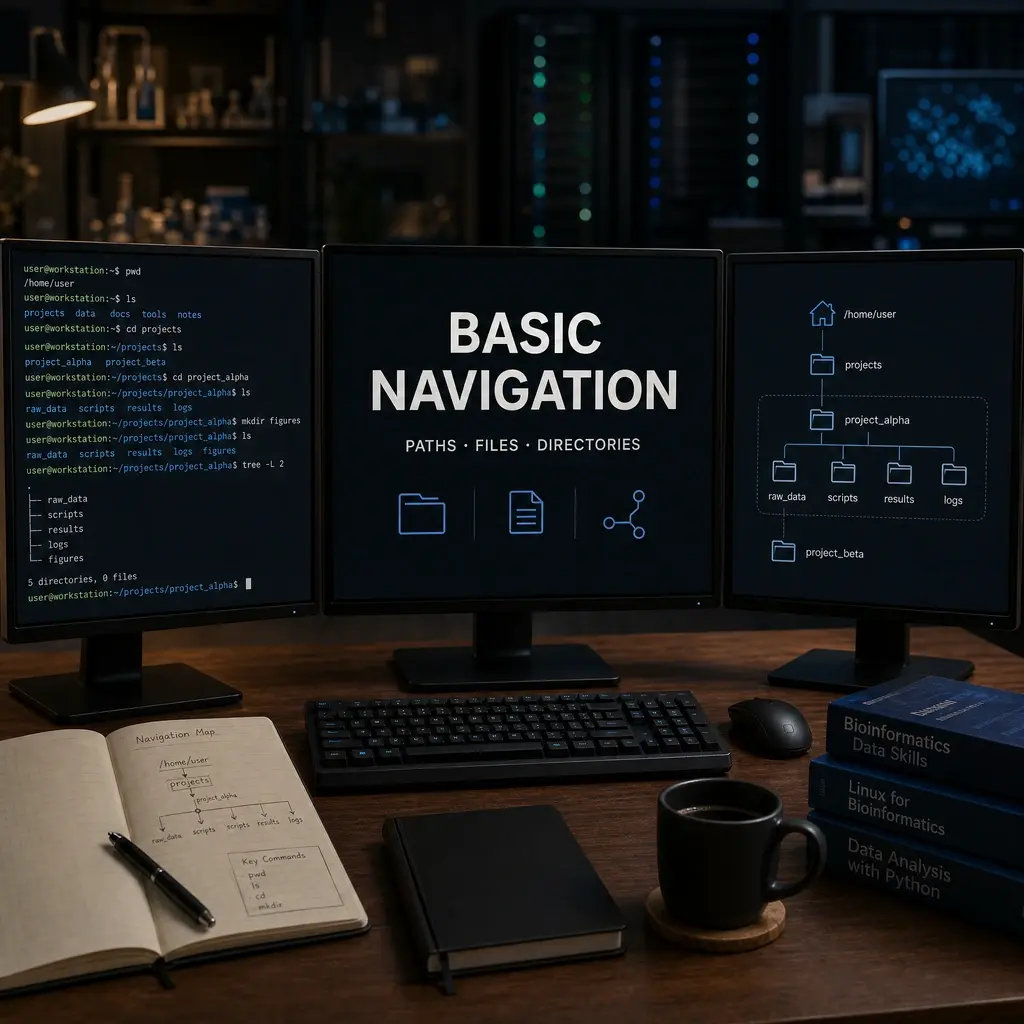
Learning Objectives & Prerequisites
- Prerequisites: A terminal on Linux, macOS, or Windows WSL; no prior shell experience is required.
- Objective: Navigate directories, inspect files, create folders, and use paths safely in a command-line bioinformatics project.
- Expected Output: A small project directory created from the terminal with documented paths and correctly named files.
Suggested route: use the Bioinformatics Learning Path to review any prerequisite stage before continuing.
Why the Command Line Matters in Bioinformatics
The command line is like learning to drive a manual transmission car. Sure, automatic is easier to start with, but once you master manual, you have complete control over the machine. In bioinformatics, that control translates to unprecedented power and efficiency.
Here's why every bioinformatician needs command line skills:
- Processing massive datasets that would crash graphical programs
- Automating repetitive tasks that would take hours manually
- Connecting tools together in powerful workflows
- Working on remote servers where GUIs aren't available
- Reproducing analyses with precise, documented commands
Think of the command line as your Swiss Army knife for biological data: once you master it, you'll wonder how you ever lived without it.
Getting Started: Your First Commands
Opening the Terminal
On macOS: Press Cmd + Space, type "Terminal", and press Enter
On Linux: Press Ctrl + Alt + T or search for "Terminal"
On Windows: Use Windows Subsystem for Linux (WSL) or Git Bash
Understanding the Prompt
When you open a terminal, you'll see something like:
TheOmicsHub@nmabbasi:~$
This example prompt tells you:
- TheOmicsHub: The workstation or host name
- nmabbasi: The account name
- ~: The current location (home directory)
- $: The terminal is ready for a command
Essential Navigation Commands
Where Am I? (pwd)
The pwd command (print working directory) tells you exactly where you are in the file system:
pwd
# Output: /home/nmabbasi
Think of it as your GPS for the file system: you should always know where you are before you start moving around.
What's Here? (ls)
The ls command lists the contents of your current directory:
ls                    # Basic listing
ls -l                 # Long format with details
ls -la                # Include hidden files
ls -lh                # Human-readable file sizes
ls *.fasta            # List only FASTA files
Pro tip: The -l flag shows permissions, file sizes, and modification dates: incredibly useful for troubleshooting.
Moving Around (cd)
The cd command (change directory) is your teleportation device:
cd /path/to/directory  # Go to specific path
cd ..                  # Go up one level
cd ~                   # Go to home directory
cd -                   # Go back to previous directory
cd                     # Also goes to home directory
Navigation shortcuts:
- . means "current directory"
- .. means "parent directory"
- ~ means "home directory"
- / means "root directory"
File and Directory Operations
Creating Directories (mkdir)
mkdir project                    # Create single directory
mkdir -p project/data/raw       # Create nested directories
mkdir project_{1..5}            # Create multiple directories
The -p flag is a lifesaver: it creates parent directories if they don't exist.
Creating Files (touch)
touch analysis.txt              # Create empty file
touch file1.txt file2.txt      # Create multiple files
touch data/sample_{1..10}.fastq # Create numbered files
Copying Files and Directories (cp)
cp file1.txt file2.txt          # Copy file
cp file1.txt backup/            # Copy to directory
cp -r project/ project_backup/  # Copy directory recursively
cp *.fasta sequences/           # Copy all FASTA files
Important: Use -r (recursive) when copying directories!
Moving and Renaming (mv)
mv old_name.txt new_name.txt    # Rename file
mv file.txt documents/          # Move file to directory
mv *.fastq raw_data/           # Move all FASTQ files
Caution: mv will overwrite existing files without warning!
Removing Files and Directories (rm)
rm file.txt                     # Remove file
rm -r directory/                # Remove directory recursively
rm -f file.txt                  # Force removal (no confirmation)
rm *.tmp                        # Remove all temporary files
⚠️ Warning: There's no "trash" in the command line: deleted files are gone forever!
Knowledge Check & Assessment
1. Concept Verification
What is the difference between an absolute path, a relative path, the current directory, and the home directory?
2. Practical Execution
Create a project directory with raw-data, scripts, and results subdirectories; use pwd, ls, cd, and mkdir to verify it. Pass Criteria: Record the command or analysis choice, keep the output, and explain why it answers the stated task.
3. Troubleshooting
If a command reports “No such file or directory,” how will you check the working directory, spelling, spaces, and permissions?
Reviewed: January 2026
All commands and outputs were verified with the software versions listed in this tutorial. If you encounter reproducibility issues, please report them through the Contact page.
Author: Nasir Mahmood Abbasi, PhD · Category: Shell Command Basics