Basic Slurm Commands
Nasir Mahmood Abbasi, PhD
Bioinformatics Educator
Learning Objectives & Prerequisites
- Prerequisites: Complete Connecting to HPC and have authorized access to a Slurm-based cluster.
- Objective: Inspect modules, partitions, nodes, queues, and job status before requesting cluster resources.
- Expected Output: A short cluster-status report showing the selected partition, available modules, and the status of a test job.
Suggested route: use the Bioinformatics Learning Path to review any prerequisite stage before continuing.
Modules
Some programs on the HPC cluster are only accessible by loading specific modules. For example, to compile MPI programs with mpic++, you would load the appropriate module:
module load mpi/openmpi-x86_64
For more options and commands, you can always consult the manual:
man module
Here are some of the most important module commands:
module avail: Lists all available modules.module list: Lists all currently loaded modules.module load X: Loads moduleX.module unload X: Unloads moduleX.module purge: Unloads all currently loaded modules.
Important: Remember to load the appropriate modules inside your job submission scripts (see Writing a submission script). These in-script module loads are usually preceded by module purge to ensure a clean environment.
Listing partitions and nodes
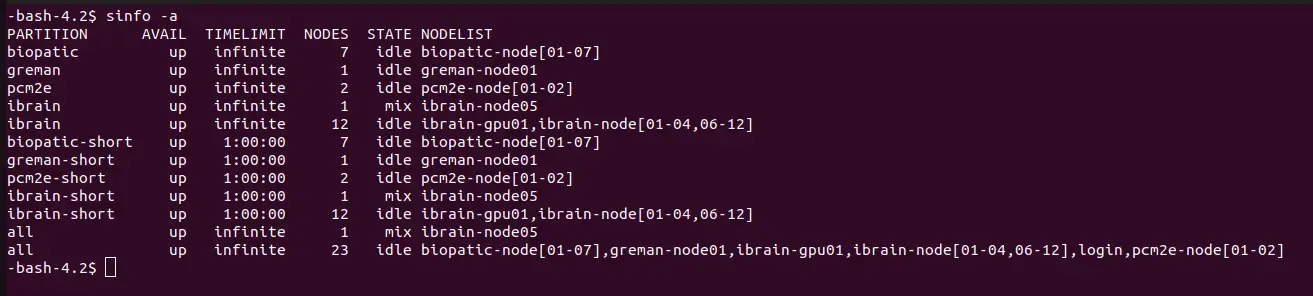
To view information about the cluster partitions and nodes, use the sinfo command:
sinfo
The STATE column indicates the status of the nodes listed in the NODELIST column. Common states include:
idle: No resources are allocated.mix: Some resources are allocated, but not all.alloc: At least one resource (CPU or memory) is fully allocated.drain: The node will finish current jobs but will not accept new ones.down: The node is shut down.
For a comprehensive list of states and options, consult the manual:
man sinfo
To display the characteristics of each node, use:
sinfo --long --Node
The --long option provides detailed information. The important columns in the output are CPUS (maximum allocatable CPUs) and Memory (maximum available memory in Megabytes). You can restrict the output to a single partition using the -p option.
Listing submitted jobs
To view all submitted jobs, use:
squeue
To see only your own jobs, use:
squeue -u `whoami`
The ST column shows the job status, typically R for running or PD for pending.
Partitions, nodes and jobs in a GUI
If X forwarding is activated (see section Running a GUI), you can run a graphical interface to monitor the cluster:
sview&
Running tasks
There are two primary ways to execute tasks on the cluster nodes:
- Submit a job (section Submitting a job).
- Start an interactive session (section Running an interactive session).
Interactive sessions should generally be reserved for specific cases:
- When you need to run a Graphical User Interface (GUI).
- When you are debugging your program.
For all other scenarios, it is highly recommended to submit a job script. The reason is that interactive sessions require allocated resources, and there is often downtime (e.g., modifying scripts, waiting for tasks, or idle time if you forget the task has completed). During this downtime, resources remain allocated but unused, which is inefficient. Job scripts ensure resources are utilized effectively.
Custom Module
Creating a custom module
If you have a program that you want to make available to others, you can create a custom module for it. This involves creating a module file that defines the environment variables and paths needed to run your program.
Example module file (myprogram/1.0.lua):
help([[This module loads MyProgram version 1.0]])

prepend_path("PATH", "/path/to/myprogram/bin")
prepend_path("LD_LIBRARY_PATH", "/path/to/myprogram/lib")
Place this file in a directory that is part of the MODULEPATH environment variable. You can check your MODULEPATH with module use.
Using a custom module
Once your custom module is created and placed in the correct location, you can load it like any other module:
module load myprogram/1.0
Debugging Failed Jobs (Error Diagnosis)
When a Slurm job fails, you need to diagnose why. HPC errors typically fall into three categories: OOM (Out of Memory), Timeout, or Syntax errors.
1. Reading the Slurm Logs
By default, Slurm writes output and errors to a file named slurm-<jobid>.out. Always check this file first.
cat slurm-123456.out
Example Log - OOM Error:
slurmstepd: error: Detected 1 oom-kill event(s) in StepId=123456.batch.
Some of your processes may have been killed by the cgroup out-of-memory handler.
Diagnosis: Your job requested 10GB of RAM, but the process tried to use 12GB.
Fix: Edit your submission script to request more memory (e.g., #SBATCH --mem=20G) and resubmit.
Example Log - Timeout Error:
slurmstepd: error: *** JOB 123457 ON node01 CANCELLED AT 2026-08-15T12:00:00 DUE TO TIME LIMIT ***
Diagnosis: Your job requested 2 hours, but it took longer.
Fix: Edit your submission script to request more time (e.g., #SBATCH --time=12:00:00) and resubmit.
2. Checking Job Efficiency
To prevent OOM errors and optimize resource usage, you should check how efficiently your past jobs ran using seff:
seff 123456
Output:
Job ID: 123456
Cluster: mycluster
User/Group: user/group
State: COMPLETED (exit code 0)
Cores: 1
CPU Utilized: 00:45:00
CPU Efficiency: 90.00% of 00:50:00 core-walltime
Job Wall-clock time: 00:50:00
Memory Utilized: 8.00 GB
Memory Efficiency: 80.00% of 10.00 GB
Interpretation: This was a highly efficient job. It used 80% of requested RAM and 90% of requested CPU time.
Knowledge Check & Assessment
1. Concept Verification
What is the relationship between login nodes, compute nodes, modules, partitions, and Slurm jobs?
2. Practical Execution
Load a module, inspect a partition with sinfo, submit or observe a small test job, and interpret squeue output. Pass Criteria: Record the command or analysis choice, keep the output, and explain why it answers the stated task.
3. Troubleshooting
If a command is unavailable or a partition is inaccessible, what module, account, and site-policy checks should be made?
Reviewed: April 2026
All commands and outputs were verified with the software versions listed in this tutorial. If you encounter reproducibility issues, please report them through the Contact page.
Author: Nasir Mahmood Abbasi, PhD · Category: High-Performance Computing (HPC)